
Multi-Account Browser for Android: What You Need to Know
Summarize this article with your preferred AI
If you’re looking for a multi-account browser for Android workflows, this guide explains your options.
We’ll compare two popular multi-account browsers and their mobile-profile features. We’ll also introduce another option you may not have considered: a cloud phone.
Multi-Account Browsers for Android
Gologin
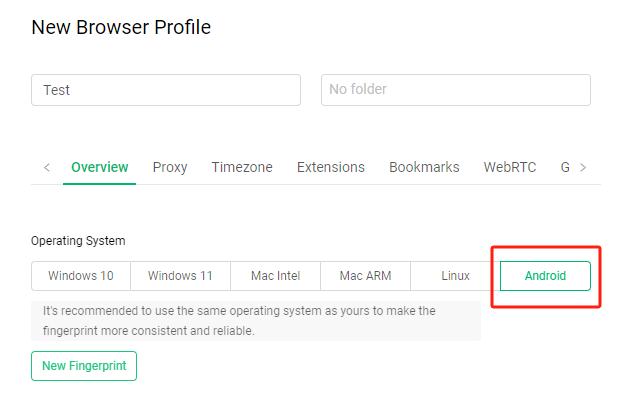
Gologin allows you to create a browser profile based on the Android system. This enables users to simulate the browser environment of an Android device, enhancing fingerprint protection and privacy management.
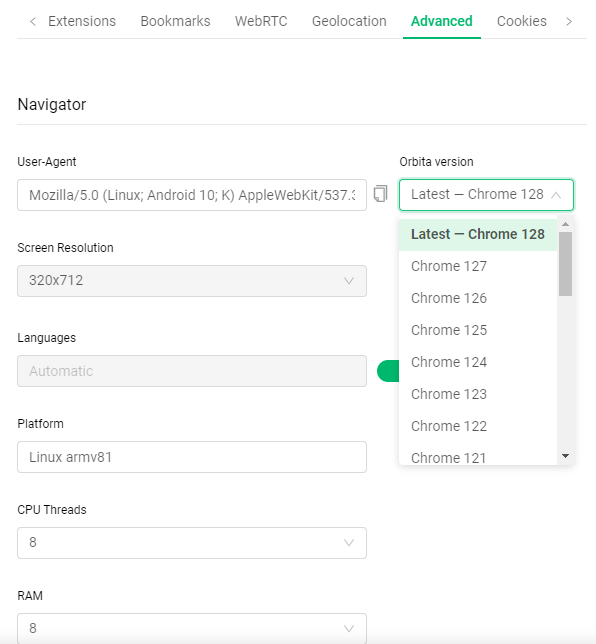
In Advanced, you can select the browser version, specifically the Chrome version in the User-Agent. This allows for more precise customization of the browser fingerprint.
AdsPower
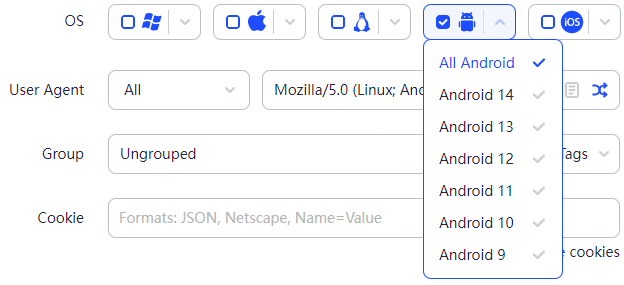
AdsPower also supports creating browser profiles based on the Android operating system. Compared to Gologin, AdsPower allows you to choose the specific Android system version when creating a profile, ranging from Android 9 to Android 14.
Most multi-account browsers simulate a mobile website inside a desktop browser, similar to Chrome’s device toolbar. They do not provide a complete Android operating system or run native Android apps.
For certain tasks, using a mobile browser simulated on a computer can work. However, some activities require apps to be installed or perform better on apps, such as warming up Facebook, TikTok, or Instagram accounts.
Cloud Phones
GeeLark
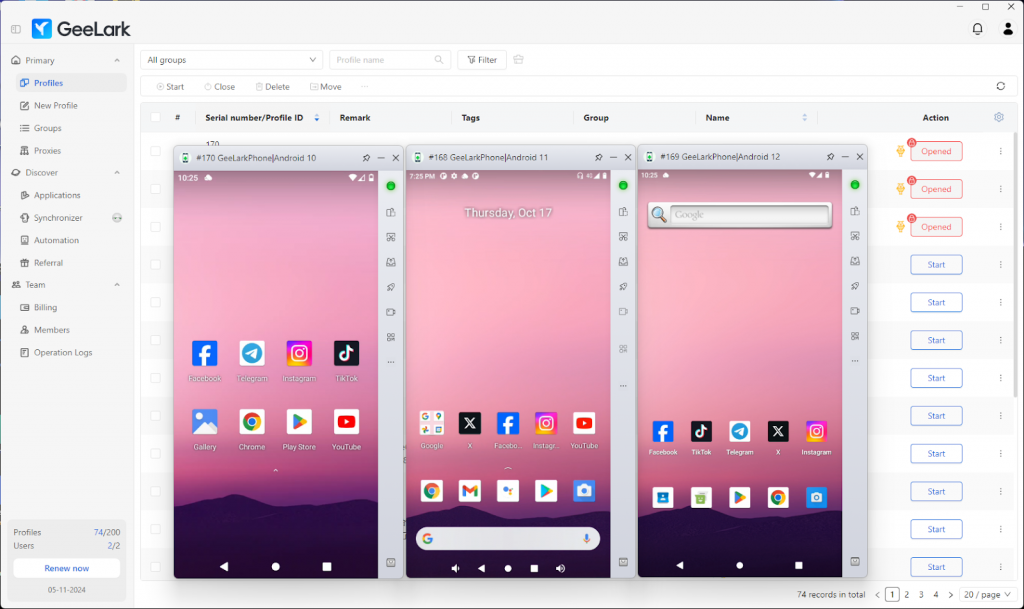
For workflows that require a complete Android environment, cloud phones such as GeeLark provide an Android operating system. GeeLark supports Android 10, 11, and 12, allowing users to install and run apps as they would on a physical Android device.
Is GeeLark safe?
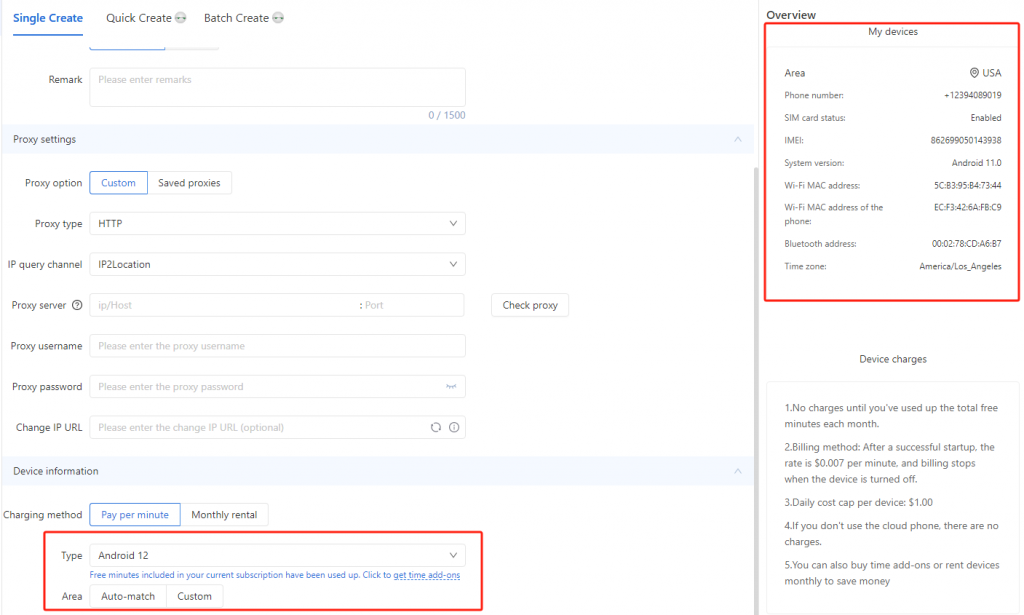
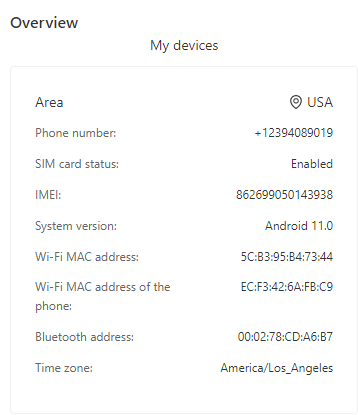
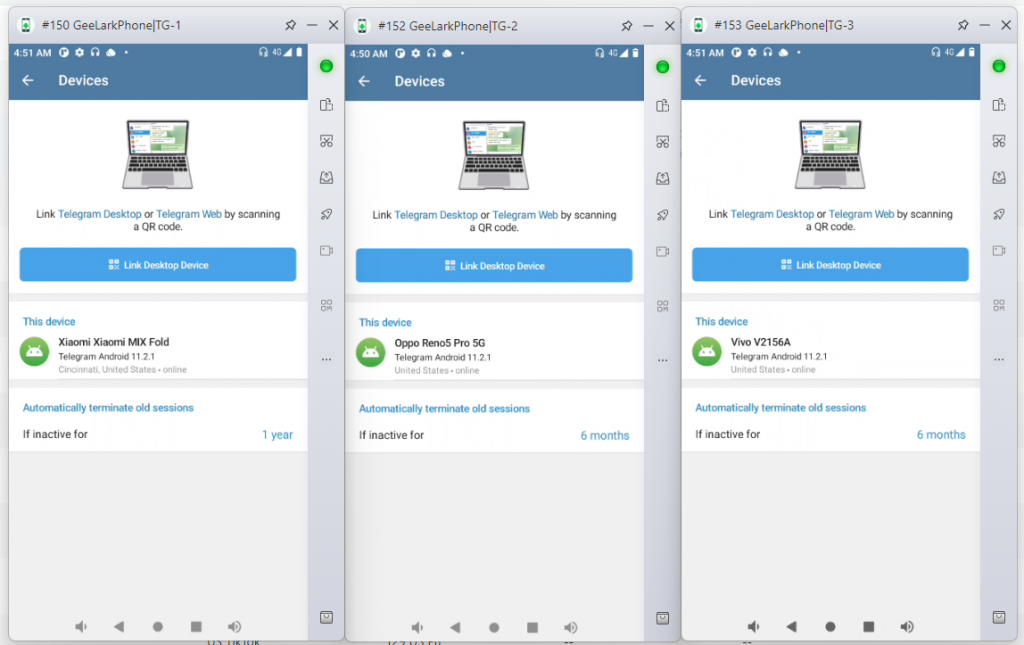
Each Cloud Phone from GeeLark comes with a unique digital fingerprint, like a MAC address, Bluetooth address, and IMEI. When you create a Cloud Phone profile, you simply choose the system you want, and GeeLark automatically generates these parameters for you.
How to Set Up a Proxy for a Cloud Phone
When creating a cloud phone profile, you can name it, add notes, choose a group, and enter the proxy information. If you have experience configuring proxies in a multi-account browser, the process should feel familiar.
GeeLark supports HTTP, HTTPS, and SOCKS5 proxies, and both static and dynamic proxies work well with GeeLark Cloud Phones.
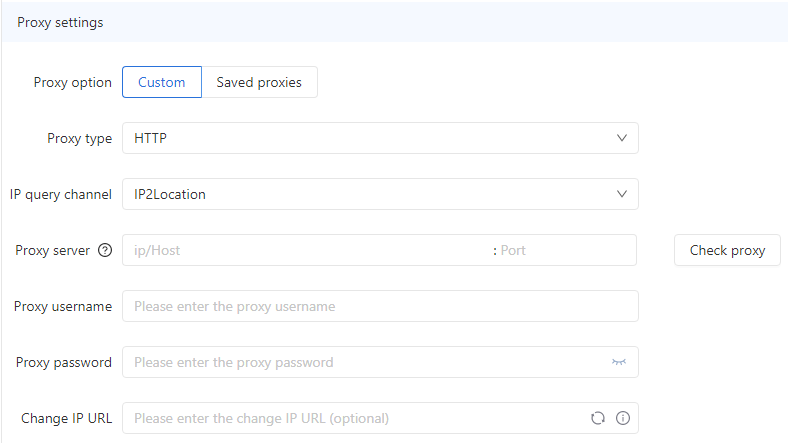
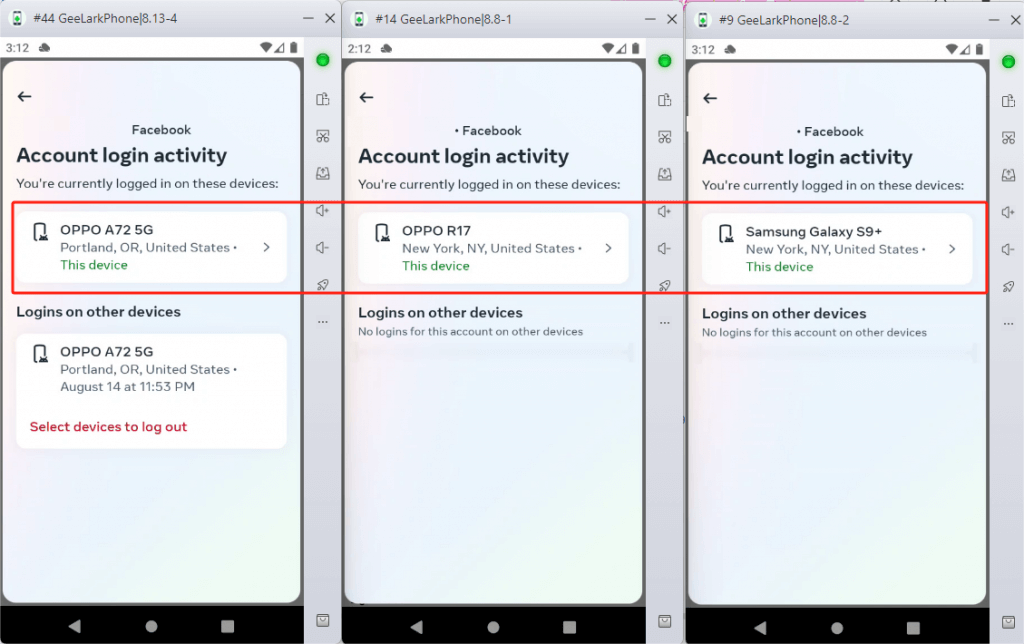
The network that a Cloud Phone uses comes from its proxy. By assigning a different proxy to each Cloud Phone, you give them unique IP addresses. This ensures “physical device isolation” and “network isolation.”
So, when you run the same app on different Cloud Phones, it looks like the devices are from different locations.
Synchronizer
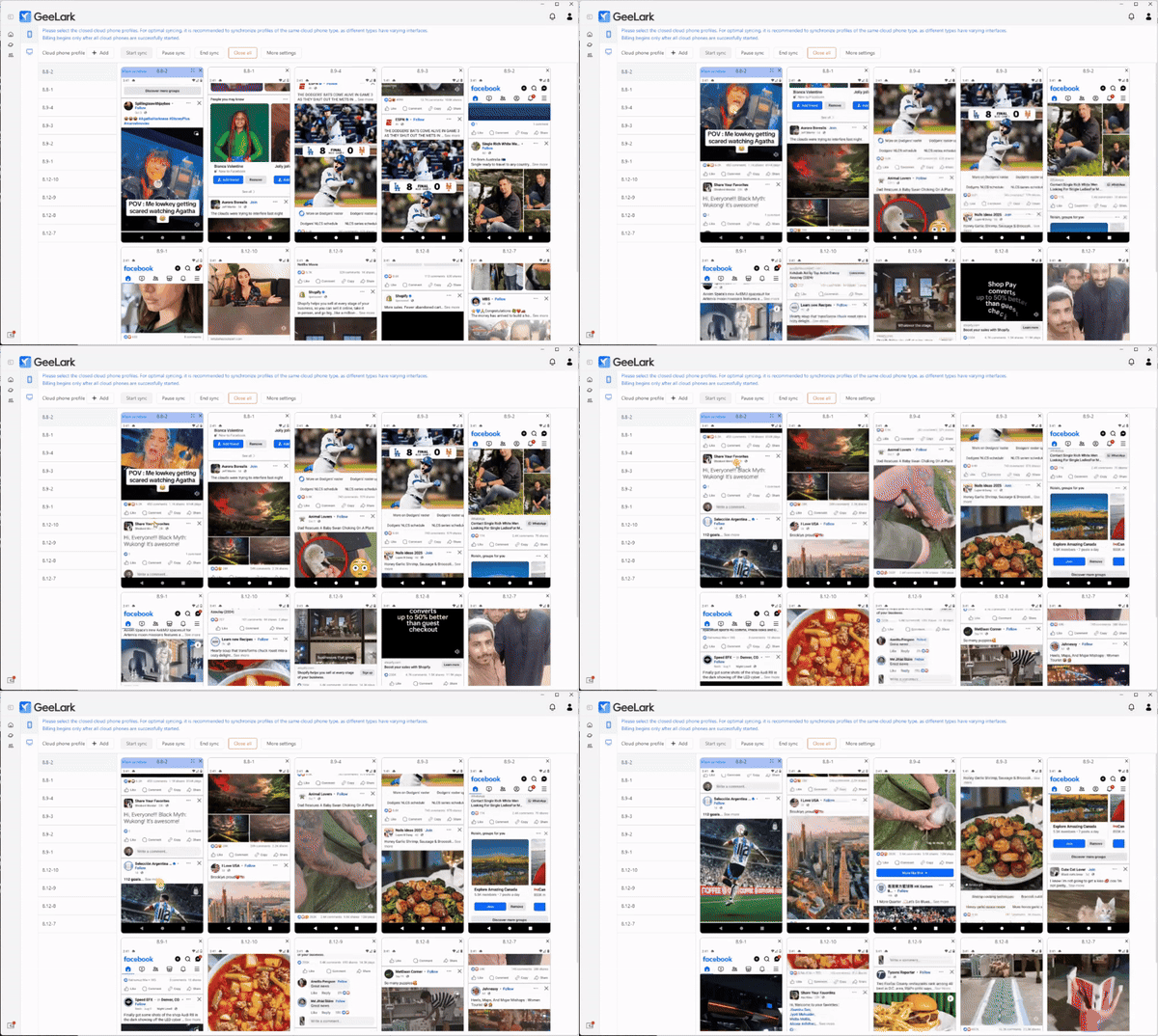
Use the Synchronizer for apps with set, repeating tasks. It allows you to control just one Cloud Phone, while all other Cloud Phones automatically mimic the actions of the main device.
Conclusion
There is no single best option for every team. Choose a multi-account browser for web-based mobile profiles or a cloud phone when you need native Android apps. The right mobile account-management solution should fit your workflow, team structure, and budget.
If you’ve tried a multi-account browser for Android workflows and need to run native apps, explore GeeLark cloud phones.