
Facebook Feed
Understanding Facebook Feed
The Facebook Feed is your home screen’s dynamic stream of posts, photos, videos, links and ads from friends, pages and groups. It uses an algorithm that weighs engagement metrics, recency and user interests to surface the most relevant updates in real time. Understanding how this algorithm prioritizes content is key to crafting posts that earn higher reach and engagement.
Crafting Authentic Feed Content for Account Warmup
When warming up new Facebook accounts, your content strategy should mirror genuine user behavior. Aim for a natural mix of formats:
- Share timely news articles that resonate with your audience
- Post short entertaining videos (under 60 seconds) to maximize retention
- Upload personal photos with a 4:5 aspect ratio for feed prominence
- Curate thought-provoking articles with headlines of 6–12 words
- Use tools like BuzzSumo for trending topic research and Canva for thumbnail design
Optimizing Posting Frequency and Timing
A controlled posting cadence prevents sudden spikes that trigger detection systems. Here’s a sample ramp-up schedule:
- Week 1: 2–3 posts
- Week 2: 3–4 posts
- Week 3: 5–6 posts
Tips:
- Align posts with peak audience activity
- Use static residential proxies for consistent access
- Monitor real-time performance and adjust timing based on engagement patterns
Leveraging Facebook’s Native Features
Tap into built-in tools to boost credibility and organic reach:
- Facebook Stories for ephemeral visibility
- Facebook Live for real-time interactions
- Facebook Groups for niche community engagement
These features signal to Facebook’s algorithm that you’re an active, authentic user.
Essential Tools for Scalable Feed Management
Antidetect Technology Solutions
While traditional antidetect browsers like Multilogin offer browser fingerprint masking, GeeLark’s cloud phones go further by simulating full Android environments on real cloud hardware. Hardware-level isolation and native mobile app support translate directly into higher view rates and fewer account blocks.
Proxy Management for Feed Diversity
IP diversity is essential to maintain distinct account identities. Consider:
- Residential proxies for mission-critical accounts to maximize legitimacy
- Datacenter proxies for testing and low-risk experiments, cost-effective and fast
- Mobile proxies for balanced scalability and reliability
Automated Feed Management at Scale
GeeLark’s Cloud Phone Workflow
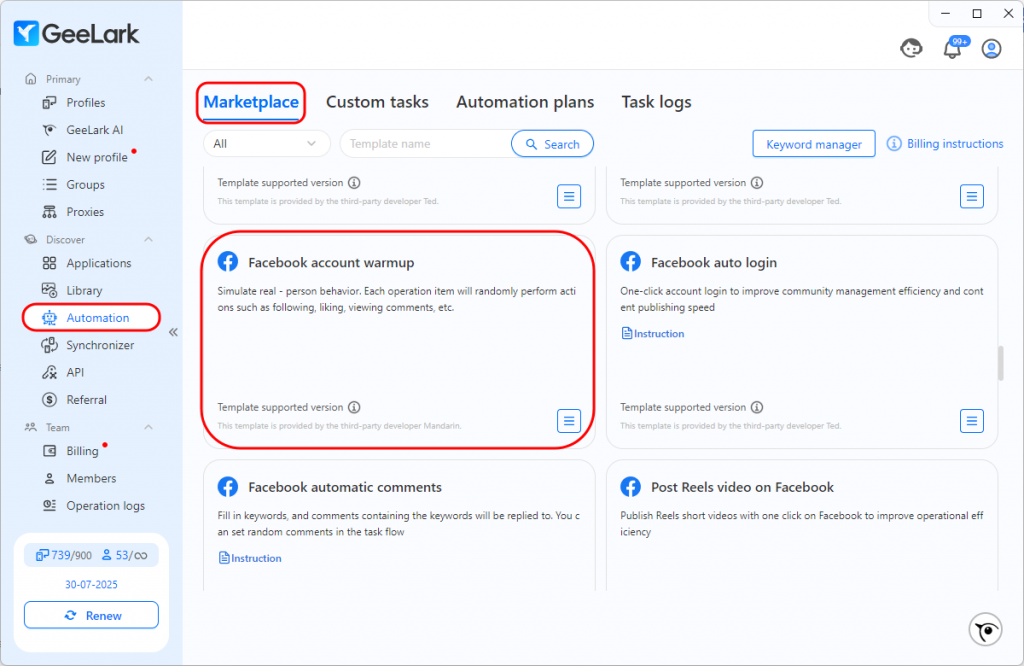
- Access the “Facebook Feed Management” template via Automation > Marketplace.
- Assign a unique cloud phone and proxy to each account.
- Bulk upload your posts—text, images or videos—and set custom publish times.
- Enable progressive activity ramping to mimic human patterns.

Advanced Automation Features
- Recurring tasks maintain a steady posting cadence
- Bulk scheduling handles hundreds of accounts simultaneously
- Action sequencing simulates natural browsing, scrolling and interactions
Conclusion
Mastering Facebook Feed management combines authentic content strategies, optimal timing, and robust infrastructure. By following progressive warmup schedules, leveraging native features and employing GeeLark’s cloud-phone automation, you can achieve sustainable growth, higher organic reach and safer multi-account operations. Don’t forget to stay updated on Facebook Community Standards to maintain a healthy, policy-compliant presence.
People Also Ask
What is the Facebook feed?
The Facebook Feed is the personalized, continuously updating list of posts, photos, videos, status updates and ads from your friends, Pages and Groups. An algorithm ranks and surfaces content based on your interactions, interests and network activity, ensuring the most relevant updates appear prominently on your home screen in real time.
How do I see my Feed on Facebook?
Log in to Facebook on the web or in the mobile app. On desktop, click the “Home” icon in the top-left corner—your Feed will appear in the center of the page. In the mobile app, tap the “Home” house icon or the three-line menu and select “Feeds.” Your personalized list of posts, photos and videos from friends, Pages and Groups will then load—just scroll to see more.
How do I get my Facebook news feed back to normal?
Click the Home icon (web) or the house tab (mobile), then open News Feed Preferences:
- On desktop, click the ▾ arrow → Settings & Privacy → News Feed Preferences.
- In the app, tap ☰ → Settings & Privacy → Feed Settings.
From there you can:
- Switch sorting back to “Most Recent.”
- Reconnect with friends, Pages or Groups you’ve unfollowed.
- Undo snoozes and re-add Favorites.
After adjusting, refresh your feed. If it still seems off, clear your browser/app cache or update the Facebook app.
How can I control what I see on my Facebook feed?
Go to News Feed Preferences (desktop: Home icon → Settings & Privacy → News Feed Preferences; mobile: ☰ → Settings & Privacy → Feed Settings). Use “Prioritize who to see first” to favorite friends or Pages, unfollow or snooze those you don’t want, hide individual posts or ads, and resubscribe to content. Switch between “Most Recent” and algorithmic sorting. Tap “See Less” on topics or formats you dislike. Finally, review your ad preferences and notification settings to further refine what appears in your feed.