
Manage multiple Gmail accounts in separate cloud phones
Separate Android environments
Official Gmail app
Centralized profile management

CHOOSE A METHOD
What’s the best way to manage multiple Gmail accounts?
There is no single best method for everyone. If you use a small number of personal accounts, Google’s built-in Gmail account switcher may already cover what you need.
Once you manage more accounts, client accounts, regional workflows, testing environments, or shared team access, stronger separation and centralized management usually become more practical.
Gmail account switcher
BEST FOR
A few personal accounts.
ADVANTAGES
Simple and built directly into Google services.
LIMITATION
Accounts still share the same general device or browser environment.
Chrome profiles
BEST FOR
Separating a few accounts on desktop.
ADVANTAGES
Separate browser profiles, cookies, and sessions.
LIMITATION
Focused on browser workflows rather than native Android apps.
Email client
BEST FOR
Reading email from several inboxes in one interface.
ADVANTAGES
Convenient inbox consolidation.
LIMITATION
Does not provide a separate Android environment for every account.
GeeLark cloud phones
BEST FOR
Multiple accounts, client workflows, testing, distributed teams, or workflows that need separate Android environments.
ADVANTAGES
THE PROBLEM
When is Gmail’s built-in account switcher not enough?
Gmail’s built-in account switching works well for a few personal accounts. But as teams manage more authorized Gmail or Google accounts, separate projects, and multiple operators, switching inboxes alone may no longer provide the environment separation, access control, and workflow structure they need.
Constant account switching
Moving between many Gmail or Google accounts makes daily work harder to organize and track.
No separate environments
Built-in switching keeps accounts on the same device instead of giving each one a dedicated mobile workspace.
Team access gets complicated
Multiple operators need controlled access to assigned accounts without relying on shared devices or credentials.
Proxy management is fragmented
Teams managing different projects or regions may need separate proxy settings for individual environments.
Scaling adds overhead
As accounts, clients, and operators grow, manually organizing access and mobile workflows becomes harder.
Move beyond basic account switching
Separate Android environments
Controlled team access
Profile-level proxy settings
Scalable cloud workflows
How GeeLark cloud phone works for Gmail workflows
Instead of switching multiple accounts inside the same local device, GeeLark gives authorized Gmail and Google accounts separate Android cloud environments—with independent app sessions, proxy settings, and controlled team access.
Your computer
Remote access to Gmail account environments
|
GeeLark workspace
Central control for cloud phones, proxies, teams, and permissions
|
Isolated Android cloud phones
Separate mobile environments for authorized Gmail and Google accounts
|
Gmail and Google apps
Access Gmail and other Google services in dedicated mobile environments
WHY GEELARK
Why social media teams choose GeeLark
A product-level answer to multi-account operations, not a workaround stacked on top of a browser.
A dedicated cloud phone per account
Real Android in the cloud, always on, reachable from any desktop — no hardware to buy or babysit.
Independent account environments
Separate device profile, storage, app data and network path so accounts never share a footprint.
Automation for repetitive work
Warm-up, posting and routine actions run on schedule across a whole group of accounts.
Team collaboration built in
Invite operators, scope permissions per group and hand accounts over without sharing passwords.
One workspace, six working surfaces
Everything your team needs to manage mobile account workflows in one place.
Run Gmail accounts in separate cloud phones
Give each authorized Gmail or Google account its own Android cloud phone environment—so teams can keep app sessions, device profiles, and account workflows separated while managing everything from one workspace.

Automate repetitive mobile workflows
Use templates and custom tasks that run on cloud phones—no scripts to maintain, no attended sessions.

Repeat actions across multiple cloud phones
Mirror an action from one device to many. Great for supported bulk workflows and consistent setup steps.
Configure network environments by account
Attach a dedicated proxy to each cloud phone with country, session, and rotation options.

Assign access without sharing devices
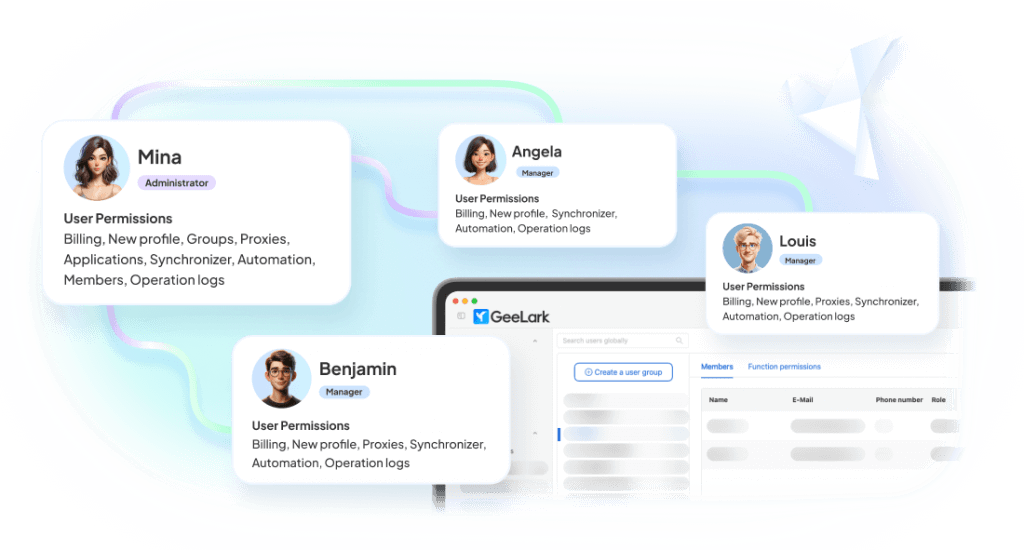
Give teammates access to the exact cloud phones and groups they need. Roles, permissions, and audit logs included.
Create social-ready content with AI
Turn ideas into images and videos for social media using multiple leading AI models—all within your GeeLark workspace.

BUILT-IN TEMPLATES
Kickstart your Gmail workflows with ready-to-use templates
Use built-in templates to automate common Gmail and Google account workflows across your cloud phones.

Download apps on Google
Google auto login
Open the app on Google for browsing
COMPARISON
GeeLark vs traditional multi-account solutions
Where each approach holds up, and where it stops scaling.
|
Criteria |
GeeLark |
Physical Phones |
Android Emulators |
Browser Profiles |
|---|---|---|---|---|
|
Scalability |
Instantly add cloud phones from one dashboard |
Limited by purchased hardware |
Limited by local CPU and RAM |
Easy to create, but tied to one computer |
|
Environment isolation |
Dedicated device, storage, and network for every account |
One physical device per account |
Shared system resources and fingerprints |
Browser isolation only; no mobile environment |
|
Team collaboration |
Role-based access with centralized management |
Requires handing over devices |
Restricted to a single workstation |
Credentials are commonly shared |
|
Automation |
Built-in automation and scheduled workflows |
Mostly manual or requires additional scripting |
Script-based with ongoing maintenance |
Limited to browser automation |
|
Hardware dependency |
None — fully cloud-based |
Requires devices, SIMs, charging, and storage |
Requires a high-performance computer |
Requires a powerful desktop |
|
Mobile app fidelity |
Native Android cloud environment |
Native Android device |
Simulated Android environment |
Browser-only experience |
Choose a cloud phone when:
You need native mobile apps, remote access, separate environments, team collaboration, and scalable workflows.
Choose an emulator when:
You mainly need local app testing.
Choose a multi-account browser when:
Your workflow is primarily browser-based.
Run multiple accounts on all your favorite platforms


Get started in 3 simple steps
Sign up
Download
Log in to the App
FAQs
Manage your Gmail workflows from separate cloud phones
Create dedicated Android cloud phone profiles, organize your account environments, and manage them from one GeeLark workspace.
