
Manage multiple LinkedIn accounts with cloud phones
Mobile-first Threads workflows
Proxy and region planning
Team-based account access
One LinkedIn per cloud phone

BUILT FOR LINKEDIN OPERATIONS AT SCALE
Agencies
Manage client LinkedIn workflows in separate cloud environments with clear team access.
Sales teams
Organize LinkedIn workflows by market, territory, rep, or campaign.
Recruiters
Keep candidate outreach, research, and recruiting workflows organized by operator.
Brand teams
Coordinate company pages, executive posting, and regional brand activities from one workspace.
VAs & operations teams
Support authorized LinkedIn tasks without relying on scattered physical devices.
THE PROBLEM
Can you have multiple LinkedIn accounts?
LinkedIn’s User Agreement says members should only have one LinkedIn account, and that account should use their real name. Creating fake identities, creating profiles for other people, or using misleading account information can violate LinkedIn’s rules.
For business teams, “managing multiple LinkedIn accounts” usually means managing authorized workspaces: your own LinkedIn profile, company pages, client accounts with permission, recruiting workflows, sales team accounts, regional brand operations, or mobile app environments used by different team members.
When teams need LinkedIn multi-account management
LinkedIn is a professional network, so account trust matters more than on many other social platforms. Teams need a clean management system when different operators, clients, regions, or business units use LinkedIn for recruiting, sales, brand building, or community engagement.
Multiple operators to manage
Different team members may handle recruiting, sales, brand, or community workflows.
Fragmented LinkedIn workflows
Profiles, company pages, and client operations become harder to coordinate across teams.
Inconsistent work environments
Different devices and setups make team operations harder to standardize and manage.
Team access challenges
Teams need controlled access to authorized LinkedIn workflows without sharing credentials.
Hard to scale
Adding clients, regions, and operators increases coordination and management overhead.
Pain points become a single workspace
Centralized LinkedIn workspace
Dedicated cloud environments for operators
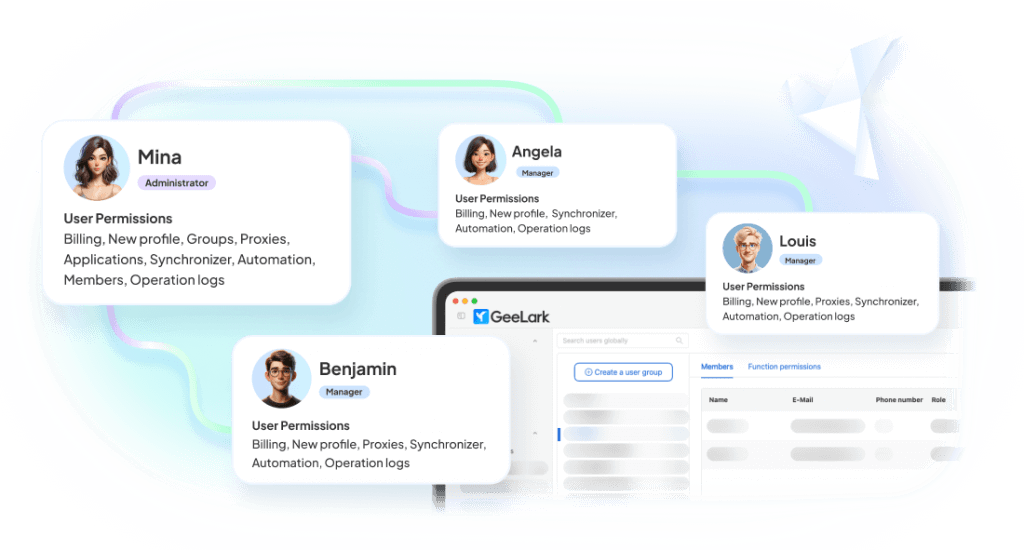
Role-based team permissions
Organized accounts, teams, and workflows
WHY GEELARK
Keep LinkedIn workspaces separate
When different LinkedIn workflows are mixed on the same device, teams can lose track of who owns which account, which client is being managed, which proxy is being used, and which operator performed each action. GeeLark helps separate LinkedIn workspaces so teams can manage access and activity more clearly.
Separate app sessions
Run LinkedIn app sessions in separate Android cloud phones. This helps keep local app data, login state, and workflow history organized across different authorized accounts or workspaces.
Proxy and region planning
Assign proxy settings based on client, region, business unit, or operator workflow. This helps teams avoid mixing unrelated LinkedIn environments.
Team access control
Give each operator access only to the cloud phones and LinkedIn workspaces they need. This reduces password-sharing chaos, accidental account switching, and cross-client mistakes.
Cleaner audit and handoff
Use clear labels, account notes, and workspace ownership to make LinkedIn account handoff and review easier for agencies, sales teams, and recruiting teams.
How GeeLark cloud phones work for LinkedIn
GeeLark gives teams dedicated Android cloud environments for authorized LinkedIn workflows. Instead of relying on shared local devices, operators can access LinkedIn in separate environments with independent app data, login sessions, proxy settings, and team permissions.
Your computer
Access LinkedIn work environments remotely
|
GeeLark workspace
Manage cloud phones, teams, proxies, and permissions
|
Dedicated Android cloud phones
Separate environments for LinkedIn operators and workflows
|
LinkedIn app
Run authorized LinkedIn workflows in the native mobile app
One workspace, six working surfaces
Everything an operator touches during a normal day, in a single product.
Create and organize Android cloud phones
Spin up isolated Android environments and group them by account, brand, region, or campaign—all from one dashboard.

Automate repetitive mobile workflows
Use templates and custom tasks that run on cloud phones—no scripts to maintain, no attended sessions.

Repeat actions across multiple cloud phones
Mirror an action from one device to many. Great for supported bulk workflows and consistent setup steps.
Configure network environments by account
Attach a dedicated proxy to each cloud phone with country, session, and rotation options.

Assign access without sharing devices
Give teammates access to the exact cloud phones and groups they need. Roles, permissions, and audit logs included.
Create social-ready content with AI
Generate images, videos, and campaign ideas tailored for TikTok, Instagram, Facebook, X, Reddit, and more—without leaving your GeeLark workspace.

COMPARISON
GeeLark vs traditional multi-account solutions
Where each approach holds up, and where it stops scaling.
|
Criteria |
GeeLark |
Physical Phones |
Android Emulators |
Browser Profiles |
|---|---|---|---|---|
|
Scalability |
Instantly add cloud phones from one dashboard |
Limited by purchased hardware |
Limited by local CPU and RAM |
Easy to create, but tied to one computer |
|
Environment isolation |
Dedicated device, storage, and network for every account |
One physical device per account |
Shared system resources and fingerprints |
Browser isolation only; no mobile environment |
|
Team collaboration |
Role-based access with centralized management |
Requires handing over devices |
Restricted to a single workstation |
Credentials are commonly shared |
|
Automation |
Built-in automation and scheduled workflows |
Mostly manual or requires additional scripting |
Script-based with ongoing maintenance |
Limited to browser automation |
|
Hardware dependency |
None — fully cloud-based |
Requires devices, SIMs, charging, and storage |
Requires a high-performance computer |
Requires a powerful desktop |
|
Mobile app fidelity |
Native Android cloud environment |
Native Android device |
Simulated Android environment |
Browser-only experience |
Choose a cloud phone when:
You need native mobile apps, remote access, separate environments, team collaboration, and scalable workflows.
Choose an emulator when:
You mainly need local app testing.
Choose a multi-account browser when:
Your workflow is primarily browser-based.
Run multiple accounts on all your favorite platforms


Get started in 3 simple steps
Sign up
Download
Log in to the App
FAQs
Start managing multiple LinkedIn accounts today
Create your first cloud phones, prepare their environments and run the whole workflow before you commit to a plan.
